 Honeycomb Maps Docs
Big Number
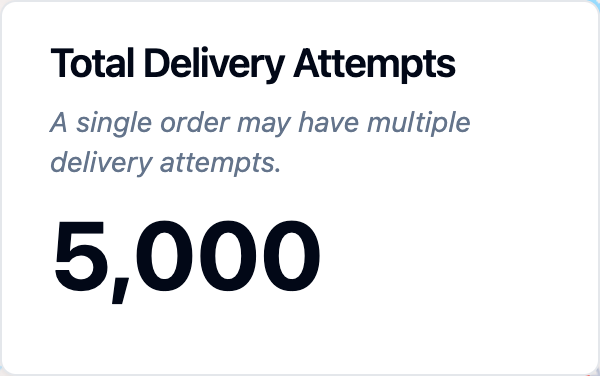
The big number component provides a prominent display of a single important metric. This is useful for highlighting key statistics like total sales, average values, or record counts that summarize your data.
Example
Configuration Options
Title
Text to be shown above the number. Used to label what the metric represents.
Subtitle
Additional descriptive text shown below the number. Can be used to provide context or explain how the metric is calculated.
Data Source
Select which data source the metric should use. This must be one of the data sources already added to your map.
Measure Field
The numeric field to calculate the metric from. This must be a numeric field from your selected data source. For example:
- Revenue
- Customer count
- Temperature
- Distance
- Population
INFO
If you don't see a numeric field in your dataset listed as a measure, it is possible that it was mistakenly assigned a string data type. You can check this by looking in the data sources menu.
Aggregation Type
Determines how the measure field values are combined into a single number. Available options:
- Minimum: Shows the smallest value
- Maximum: Shows the largest value
- Sum: Adds up all values
- Average: Takes the mean of all values
- Count: Shows the number of records
- Median: Shows the middle value
Number Formatting
Control how the aggregated number is displayed using custom formatting options. This allows you to present values as currency, percentages, dates, compact notation, and more.
Available format types:
- Auto: Default locale-based formatting
- Number: Customizable numeric display with decimal places, thousands separators, and sign options
- Percent: Percentage formatting with optional automatic conversion
- Currency: Monetary values with customizable symbols and positioning
- Date/Time: Human-readable dates and times from timestamps
- Compact: Large numbers with K, M, B suffixes (e.g., "1.5M" for 1,500,000)
- Custom: Advanced pattern-based formatting for specialized needs
Unit Labels: All format types support optional unit labels that can be added as a prefix or suffix:
- Examples: "°F", "/year", "items", "mm"
- Useful for adding units of measurement to your metrics
When to use:
- Currency format for revenue, costs, or financial metrics
- Percent format for conversion rates or growth percentages
- Compact format for very large numbers (population, page views, etc.)
- Date/Time format when displaying temporal aggregations
- Unit labels to clarify what the number represents
For complete details on all formatting options, see the Number Formatting Reference.
TIP
The big number component automatically updates when you filter the map using other components, making it easy to see how metrics change for different selections of your data.