 Honeycomb Maps Docs
Data Sources
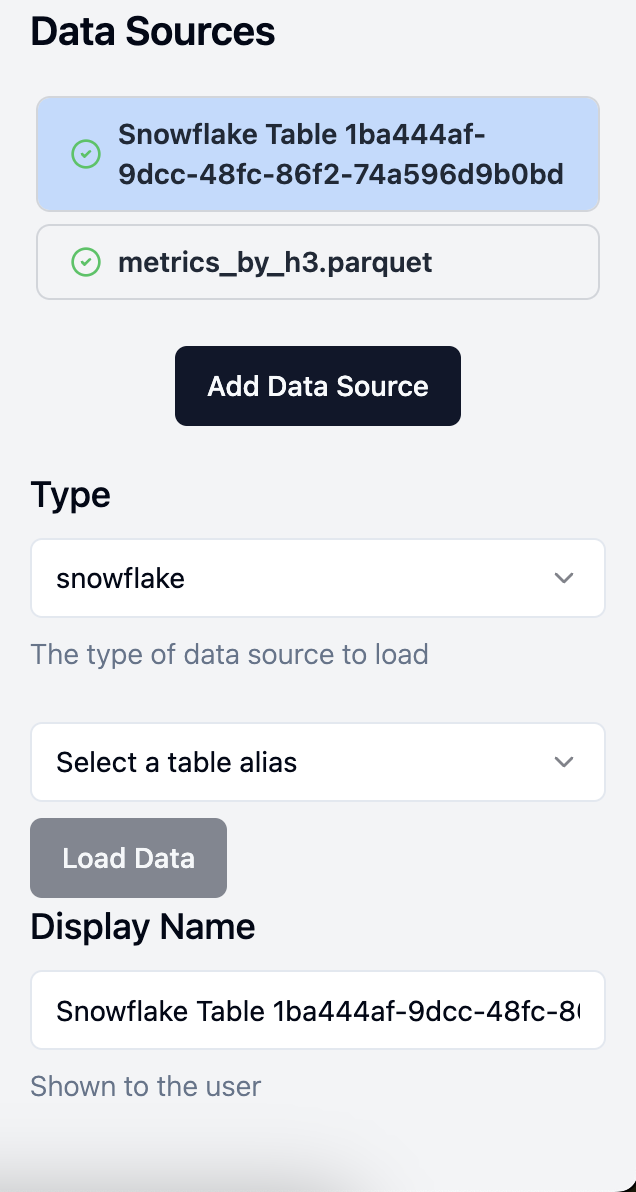
The data sources pane lets you control where Honeycomb pulls data from to create a map.
Adding Data Sources
To add a data source, click on 'Add Data Source' and then select the type of data source. The Snowflake Native App supports loading directly data from Snowflake tables. The Google Drive App supports loading data from files stored in Google Drive, as well as local files.
From Snowflake Tables (Snowflake Native App Only)
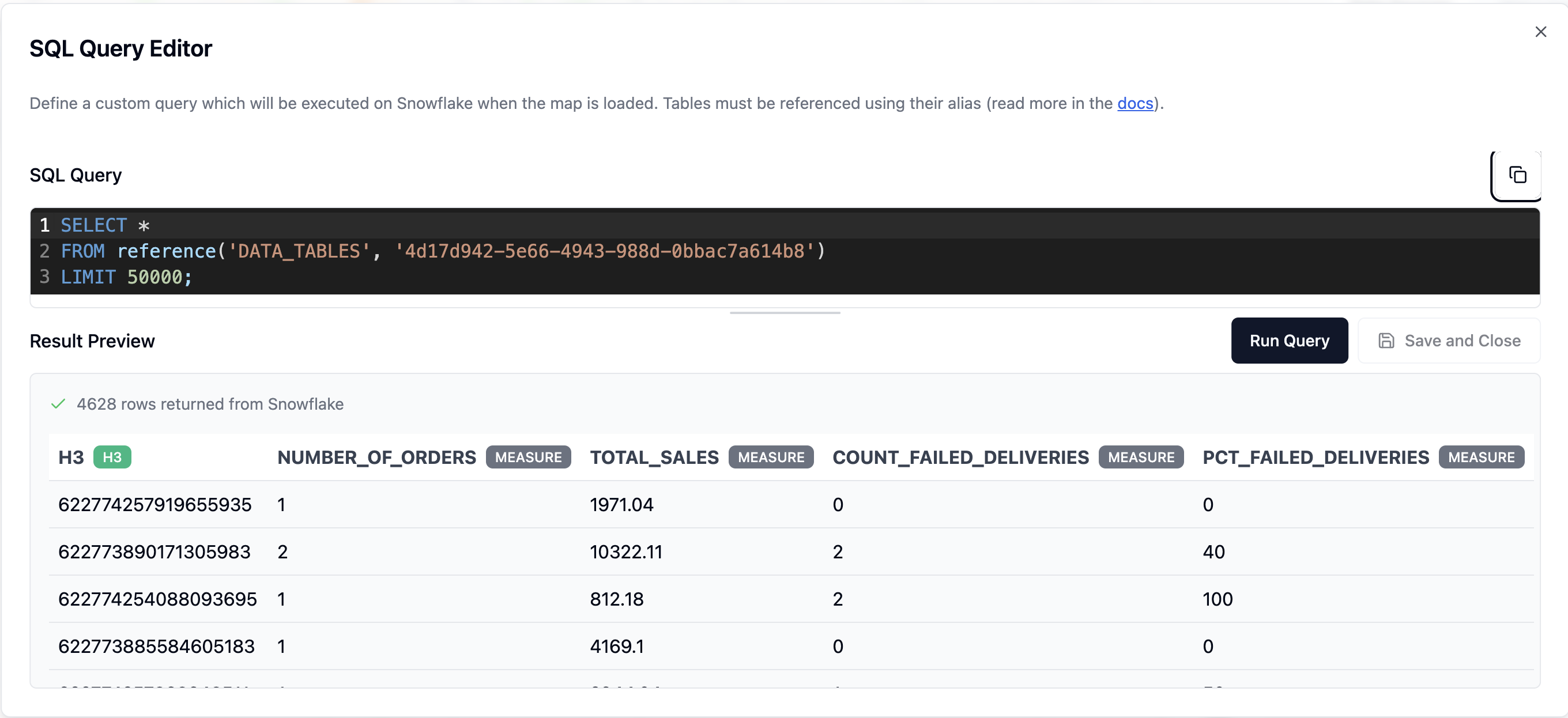
Honeycomb supports loading data directly from Snowflake tables in your account using a SQL query. When you add a Snowflake data source, you write a SQL query that will be executed when the map loads.
Restricted Caller's Rights
Honeycomb uses Restricted Caller's Rights (RCR) to access Snowflake data. This means that Honeycomb inherits the permissions of the current user rather than requiring explicit grants to the application itself. Read about how to configure RCR.
With RCR:
- You can query any table that you have permission to access in Snowflake
- No additional
GRANTstatements to the Honeycomb application are required - Your existing Snowflake role-based access controls are automatically respected
Writing a SQL Query
To add data from Snowflake, click 'Open SQL Editor' to open the SQL editor. In the query editor you can write a SQL query, run it, and see the results. When you are satisfied with the results, click 'Save and Close' to add the data to the map.
TIP
If a query is failing, verify that your current Snowflake role has SELECT permission on all the tables referenced in the query and that Restricted Caller's Rights has been configured to allow Honeycomb to use this permission.
From local files (Google Drive App Only)
Honeycomb can also load data from CSV, Parquet, GeoJSON and KML files that are stored on your computer. This functionality is only supported when using Honeycomb Maps Google Drive App.
INFO
Uploading local files is not supported when using the Honeycomb Maps Snowflake Native App. Instead, you should load your data to a Snowflake table first, and then query it from within Honeycomb Maps as a Snowflake query data source.
Other configuration options
Display Name
The Display Name field allows you to enter a user-friendly name for this data source which will be used elsewhere in the Honeycomb user interface. This is especially useful if you build a map dashboard that pulls data from multiple Snowflake tables and need to differentiate between tables while you are configuring map layers and components.
Field names and types
The Fields list shows the fields (columns) that Honeycomb has identified within the imported data, along with their Field Type. Honeycomb inherits field types from Snowflake tables automatically and field types cannot be changed (if they are incorrect, they should be changed upstream/within Snowflake).
INFO
The field list can be useful if a field seems to be missing from measure options (for example, if you want to perform an aggregation on a 'sales' field, but it's not appearing as an eligible measure) it may be because it it being interpreted as a string rather than a number.