 Honeycomb Maps Docs
Saving Maps
The Save Map sidebar pane allows you to save the current state of the map.
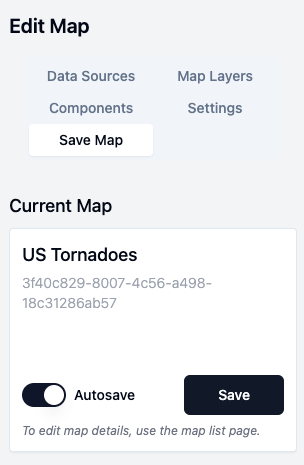
Saving the current map
To manually save the current map, click on 'Save Map'
Autosave
Autosave will automatically save changes that you make to the map while you are editing. This is useful to avoid losing work if you close the window without saving. To enable Autosave, click on the switch labeled 'Autosave' in the current map info box.
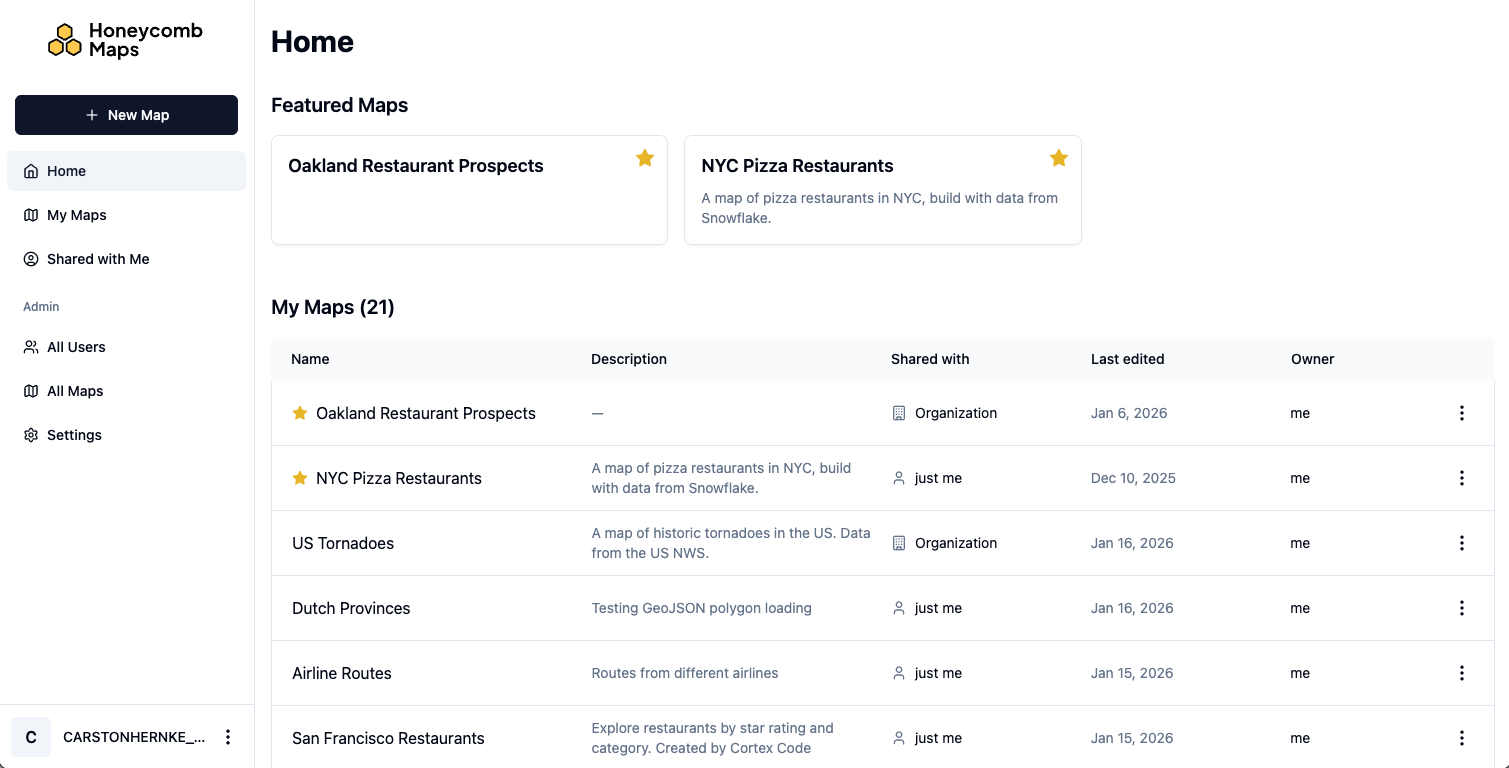
Seeing all saved maps
To see all saved maps, navigate to the Honeycomb Maps home page. This can be done by clicking on the Honeycomb Logo in the upper-left corner of the screen.
Sharing a map with others
See Sharing Maps